Survive Zombie Arena Lag Reduction Guide
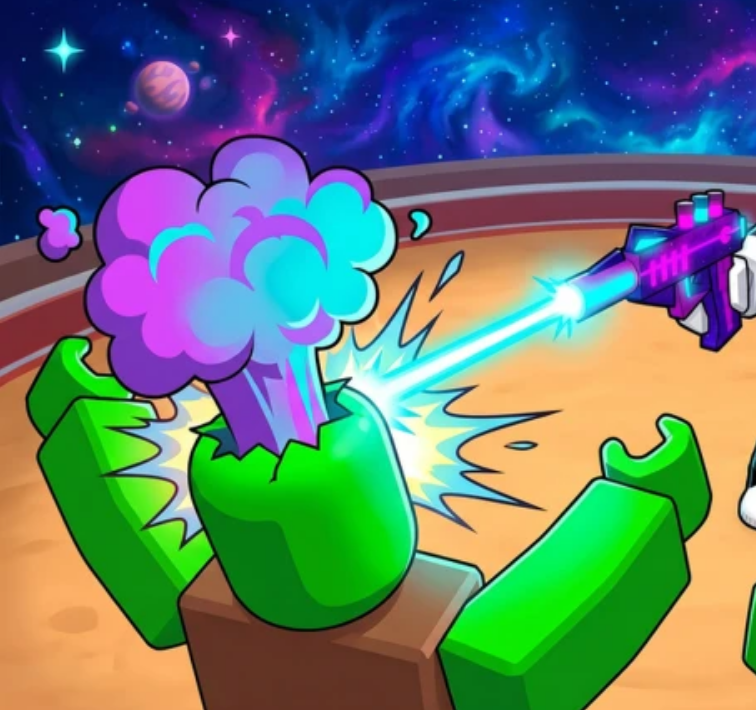
The primary selling point of Survive Zombie Arena (Roblox) is its sheer scale—challenging squads to hold the line against massive waves that render over 500+ zombies on screen simultaneously. While this creates an incredibly intense and action-packed survival experience, it can quickly turn into a performance nightmare for mobile players, console users, and lower-end PC systems.
Once your match crosses Wave 30, the overwhelming number of entity hitboxes, particle effects from weapons like the World Ender, and automated turret lasers can cause severe frame drops, input lag, screen freezing, and flat-out game crashes. If you are tired of losing your high-wave runs to hardware lag, use this comprehensive optimization guide to maximize your FPS and keep your client perfectly stable.
1. Optimize In-Game Roblox System Settings
Before adjusting anything else, you must override Roblox’s default automatic graphics engine, which poorly handles massive entity spikes.
- Switch to Manual Graphics: Open the main Roblox settings menu inside the game (by clicking the Roblox icon in the top-left corner), change Graphics Mode from Automatic to Manual, and lower the slider to level 3 or 4. This drastically tones down structural anti-aliasing and environmental shadows without making the screen too blurry to see incoming elite projectiles.
- Disable Shift Lock in Heavy Swarms: While Shift Lock is excellent for precision aiming, keeping it active when 500+ entities are pathfinding around your character can occasionally cause micro-stutters on mobile and lower-spec devices. If your screen begins to hitch, toggle Shift Lock off temporarily during peak wave rushes.
2. Reduce Combat Particle & Visual Clutter
Survive Zombie Arena features heavy visual indicators for defensive skills, explosive weapons, and support items. Stacking too many visual assets in one place will rapidly tank your frame rate.
- Space Out Automated Fortifications: If your squad is running multiple Support or Tactician classes, do not stack all your Automated Sentry Turrets and Laser Drones in a single 5x5 grid. When five or six high-tier turrets continuously calculate laser trajectories and bullet impacts on a single tightly-packed chokepoint, it creates a massive rendering bottleneck. Space your turrets out along the lane to distribute the visual load.
- Avoid Over-Spamming AoE Explosives: The Demolitionist’s Molotov and the Singularity Cannon's energy vortex generate massive particle counts. If the server frame rate begins to drop, rely more on high-piercing primary firearms (which generate standard linear bullet tracks) rather than constantly filling the screen with persistent fire and explosion animations.
3. Clear Internal Memory & Prevent Client Crashes
If your game completely freezes or closes out automatically past Wave 40, your device is likely running out of available Random Access Memory (RAM) due to data accumulation from thousands of accumulated zombie eliminations.
- Perform a Mid-Game Chat Cleanse: Text rendering engines in Roblox can leak memory during prolonged play sessions. If you are pushing for a Wave 100+ run, open the chat box and type
/clearevery 10 waves. This wipes the visual text log and frees up vital processing memory for your client. - Close Background Applications: Roblox is highly CPU-intensive when managing physics calculation caps (like tracking 500+ moving zombie hitboxes). Before launching a dedicated high-wave farming session, fully close down background browsers, recording software, or overlay apps to dedicate maximum hardware priority to the game.
4. Mobile-Specific Optimization Fixes
Because mobile processors struggle heavily with physical rendering caps, mobile players face the highest crash rates in the late-game.
- Lower Camera Field of View (FOV): Keep your camera angled slightly downward toward your immediate defensive pocket or lane choke point, rather than panning across the entire wide-open map. Rendering fewer distant zombie models simultaneously reduces your device's immediate graphical processing load.
- Remove Battery Saver Modes: Ensure your phone or tablet is not set to "Low Power Mode" or "Battery Saver." These OS profiles actively throttle your device’s GPU and CPU performance, which will cause immediate game crashes the moment a Wave 40+ boss wave spawns. Keep your device plugged into a charger for long, high-wave grinding sessions.